
Calendar and blocking dates
See which halls are free on any day, open a day to book a free slot, and block a date for repairs or private use.
 Watch the video · 0:54opens on YouTube
The month
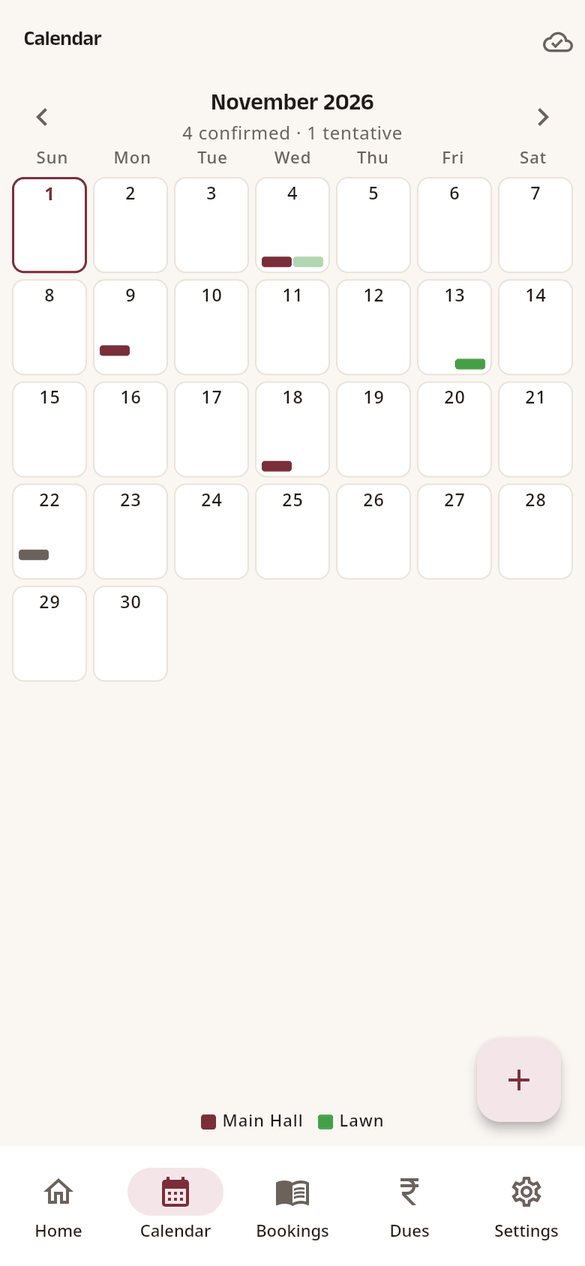
Open the Calendar tab. Each day shows two bands: morning on top, evening below. Each hall has its own colour (the list under the month says which):
- Full colour: confirmed booking.
- Faded colour: tentative booking.
- Grey: blocked.
- Red ring: two bookings clash in the same hall and slot. Open the day to fix it.
The top of the month counts confirmed and tentative bookings. Use the arrows to change the month.
A day
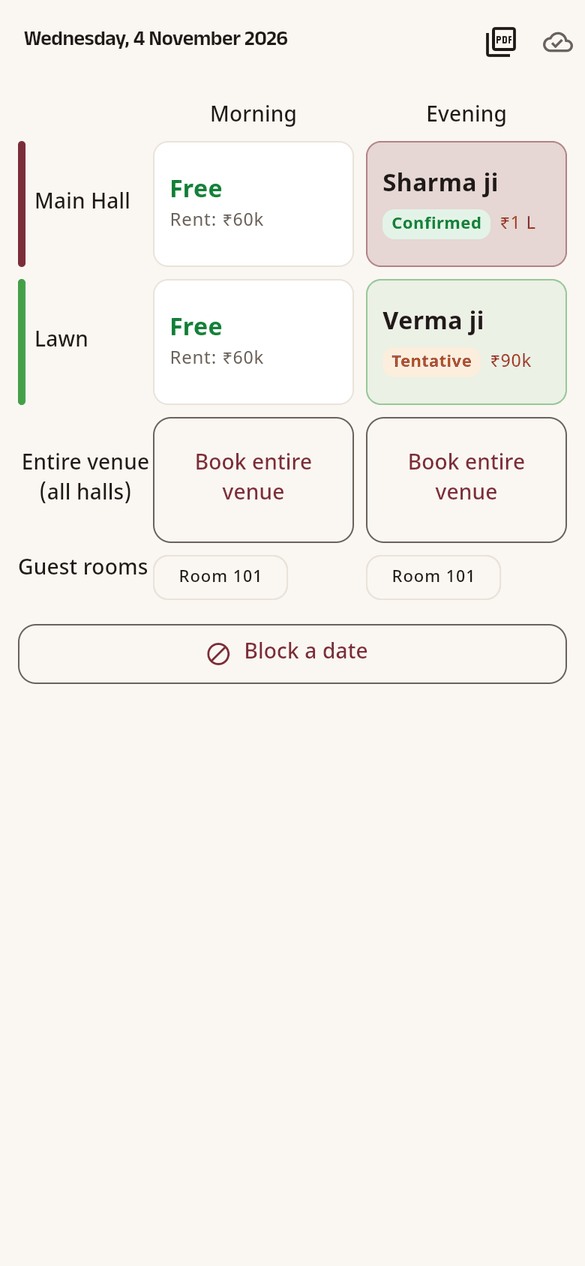
Tap a date. You see every hall for Morning and Evening:
- Free slot: tap it to start a booking for that hall and slot (with the usual rent shown).
- Booked slot: the customer, status and balance. Tap it to open the booking.
- With more than one hall, Book entire venue books all halls together.
The PDF icon at the top makes the day's Event sheet for your staff.
Block a date
Block a slot when the venue is closed, under repair, or kept for yourself. A blocked slot cannot be booked.
- Open the day and tap Block a date (or use it from Quick actions on Home).
- Type a Reason, such as “Painting”.
- Choose Morning, Evening or both, and a hall or the entire venue. Tap Save.
To free it again, tap the blocked slot and Remove block (managers, admins and the owner).