
Change, confirm or cancel a booking
Edit a booking, mark it confirmed or completed, cancel it with or without a refund, and send it to the customer.
Open the booking from Bookings, Calendar or Home.
Edit
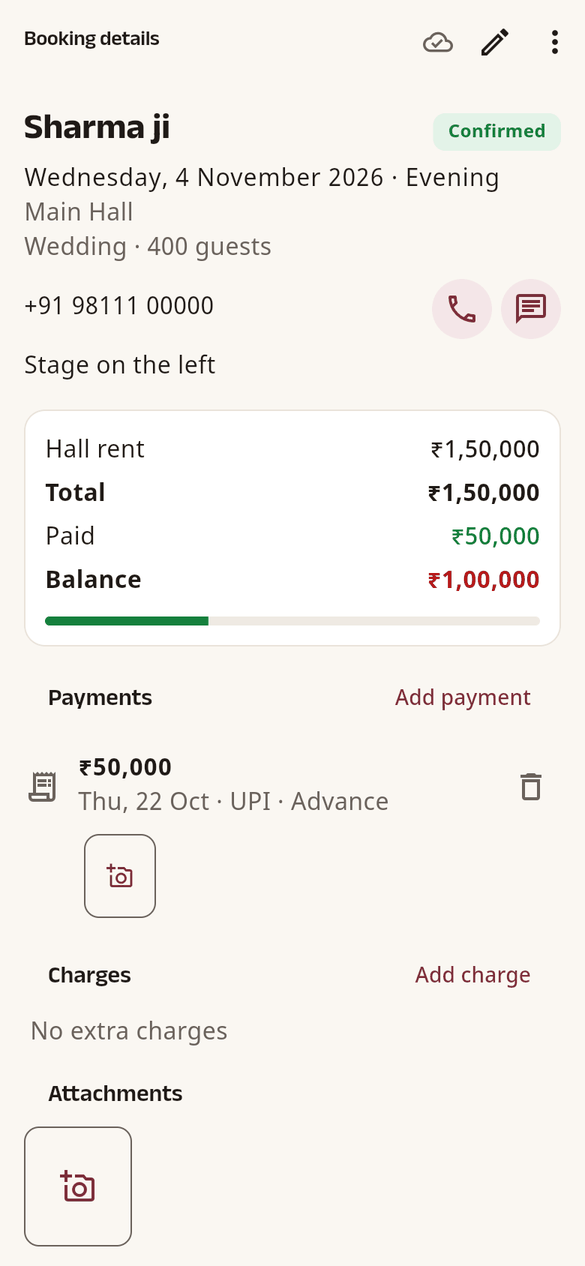
Tap the pencil (Edit), change what you need and tap Save. A booking keeps the prices it was made with: later changes to your usual rents or season prices do not change it. Only the owner or an admin can change the hall rent; managers and staff change room rates, add-on prices and other charges only if the owner allows it in Team settings, and give a discount instead (below).
Status
- Mark confirmed: a tentative booking becomes Confirmed. Recording a payment on a tentative booking confirms it too.
- Mark completed: on or after the event day. If a meter has no end reading yet, HallDiary asks first.
- Cancel booking: the date becomes free again. Choose why it is cancelled (Customer cancelled, Date changed, No payment, Venue cancelled or Other) and add a note if you like. If money was collected, choose what happens to it: Keep it (not refunded), Refund all of it or Refund part of it.
- A booking over several days: Cancel booking on one function cancels only that day; Cancel event in the ⋯ menu cancels all of them.
- Reinstate: brings a cancelled booking back as tentative.
Cancelling and reinstating are for managers, admins and the owner. The booking shows when it was cancelled, by whom and why, and Reports › Cancellations lists them all.
Send it to the customer
- Call and WhatsApp next to the phone number. WhatsApp opens with the booking summary already written.
- The ⋯ menu has Print / PDF, Share (the bill as a PDF with a summary), Statement, Share on WhatsApp and, when money is due, Send payment reminder.
Extra charges and discount
Under Bill, tap Add charge and choose Service, Rooms, Parking or Other.
A booking has one discount. Tap Give a discount under the bill, type the amount or percentage and a reason (managers and staff must give one). The discount counts on the bill total (hall rent, rooms and add-ons), and GST is worked out after it. Managers and staff can give up to the limits the owner sets in Team settings; a bigger one needs an admin or the owner. The reason is never shown to the customer; to print the discount as its own line on the bill, the owner turns on Show the discount on the customer's bill in Settings › Financial · GST.
Electricity
Each meter on the booking has a card. Tap Start reading before the event and the end reading after it; HallDiary works out the units and adds the charge to the bill. If the meter dial went past its last digit, tick the rollover box.