
Sign in and set up your venue
Start your diary with your mobile number or Google account, then name your venue and its halls.
 Watch the video · 1:21opens on YouTube
Sign in
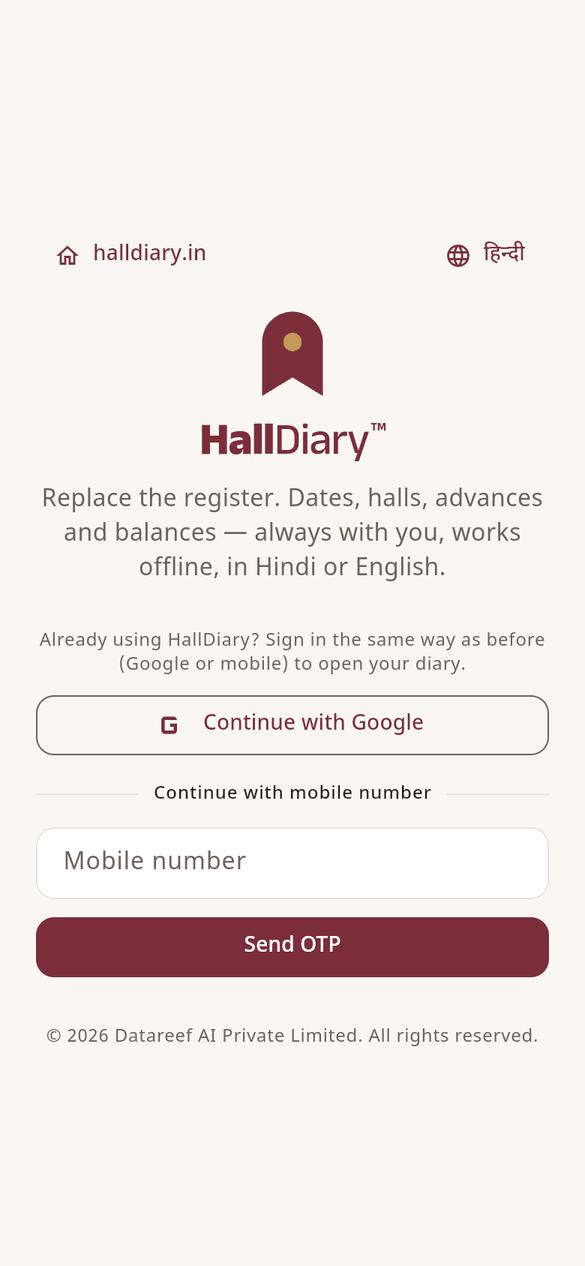
- Open the HallDiary app, or halldiary.in/app in a browser. The language switch at the top changes between हिन्दी and English.
- Tap Continue with Google, or type your Mobile number and tap Send OTP.
- For a mobile number, type the 6-digit code from the SMS and tap Verify & continue. If no SMS comes, Resend OTP works after 30 seconds.
Already using HallDiary? Sign in the same way as before (the same Google account or the same mobile number). A different way opens a different, empty diary.
Set up your venue
The first time, HallDiary asks you to Set up your venue:
- Under Venue details, type the Venue name. A Hindi name, city, phone and address are optional.
- Under Halls and usual rent, name each hall, say how many guests fit, and type the usual Morning rent (₹) and Evening rent (₹). Tap Add another hall for more halls.
- Tap Create venue. Your diary opens on Home.
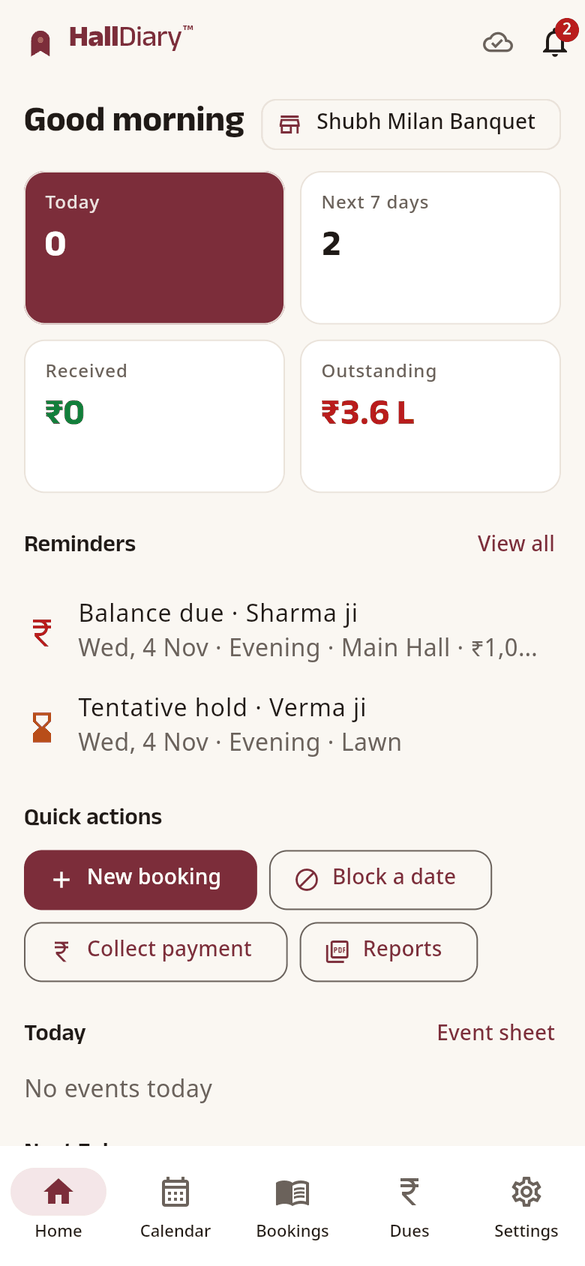
Everything here can be changed later under Settings. To look around first, try the sample venue at halldiary.in/app/?demo=1; nothing you change there is saved.
Open your diary faster
The next time you open the app, HallDiary offers Open your diary faster. Tap Turn on to open the diary with your phone's own fingerprint, face or PIN instead of an OTP. You can change this later in Settings › Quick unlock.
Signed in with Google?
Add your mobile number too: tap the Add your mobile number card on Home, or Settings › Add mobile number. It helps you get back into your account, and your team can find you by it.