
Venues, halls and rooms
Add a venue, set its halls with their usual rent and calendar colour, and add guest rooms, parking and electricity meters.
These settings are under Settings › Setup. Only the owner and admins can change them.
A venue
- Open Venues and tap Add venue, or tap a venue to change it.
- Type the Venue name, and a Name in Hindi if you like.
- Check the Invoice prefix (a short code for bill numbers, filled in for you) and the Advance % you usually ask for (30 if you leave it).
- Add the city, phone, address and, under Location (GPS), the state and district. Use current position fills the map location when you are at the venue.
- Under GST, keep Same GST number as account, or turn it off and type this venue's GSTIN. Tap Save.
After you save a new venue, HallDiary opens its halls.
Usual timings
Every new booking starts with a check-in and check-out time: morning 10:00 AM to 4:00 PM, evening 6:00 PM to midnight, a full-day wedding 9:00 AM to 9:00 AM next day, and any other full day 9:00 AM to midnight. If your venue keeps different hours, set them once:
- Open Venues, tap the venue and scroll to Usual timings.
- For Morning, Evening, Full day (wedding) or Full day (other events), tap Check-in or Check-out and pick the time. Tick Next day when the check-out is after midnight.
- Tap Save. Reset to usual puts the standard times back.
New bookings at this venue then start with your timings. Bookings already saved keep theirs, and you can still change the timing on any booking.
Halls and rooms
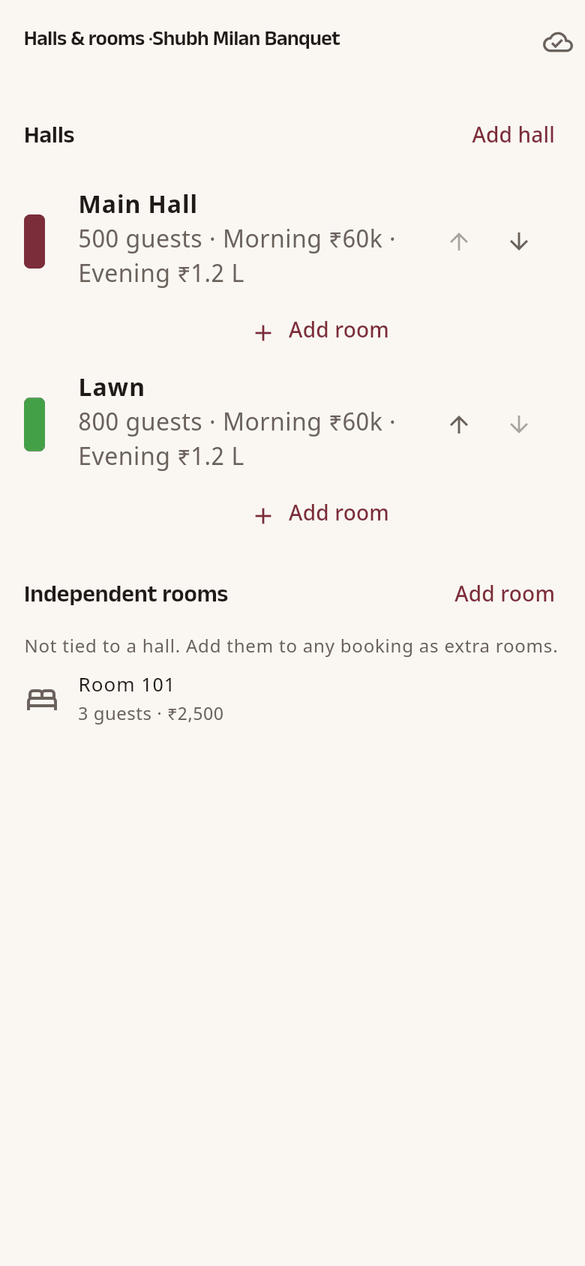
- In Halls & rooms, tap Add hall. Give the hall name, how many guests fit, the usual morning and evening rent (needed: a hall is not saved without it), optionally a Full day rent (empty means morning + evening), and a Calendar colour. Tap Save.
- To take bookings you need at least one hall. Use Move up and Move down to set the order.
- Tap Add room under a hall for rooms that come with it, or add Independent rooms that can go with any booking. A room has a name, how many people can stay and a Rate per night.
Parking and electricity
In Parking & electricity:
- Parking: for the venue and each hall, say how many cars and two-wheelers fit, and switch it off when it is not available.
- Electricity meters: tap Add meter, name it, choose what it measures (the entire venue or one hall), and type the Rate per unit you charge. Readings are then taken on each booking.
Booking options (owner)
In Settings › Booking options, switch Bookings over several days (shows Multiple days on the booking form) and Guest-rooms-only bookings (rooms without a hall; the halls stay free). Both are on unless you turn them off.