
Record a payment or refund
Add each payment to its booking with the mode and a proof photo, share the bill as a receipt, and record refunds.
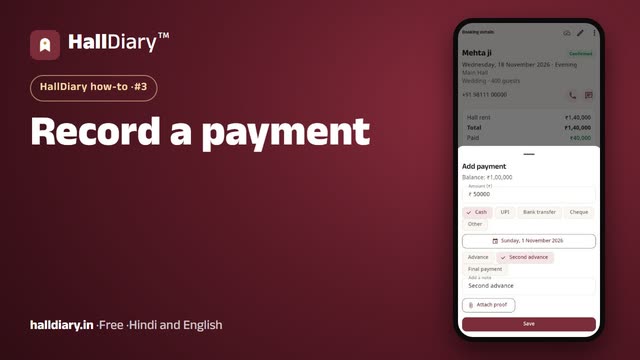 Watch the video · 1:00opens on YouTube
Managers, admins and the owner can record money.
Add a payment
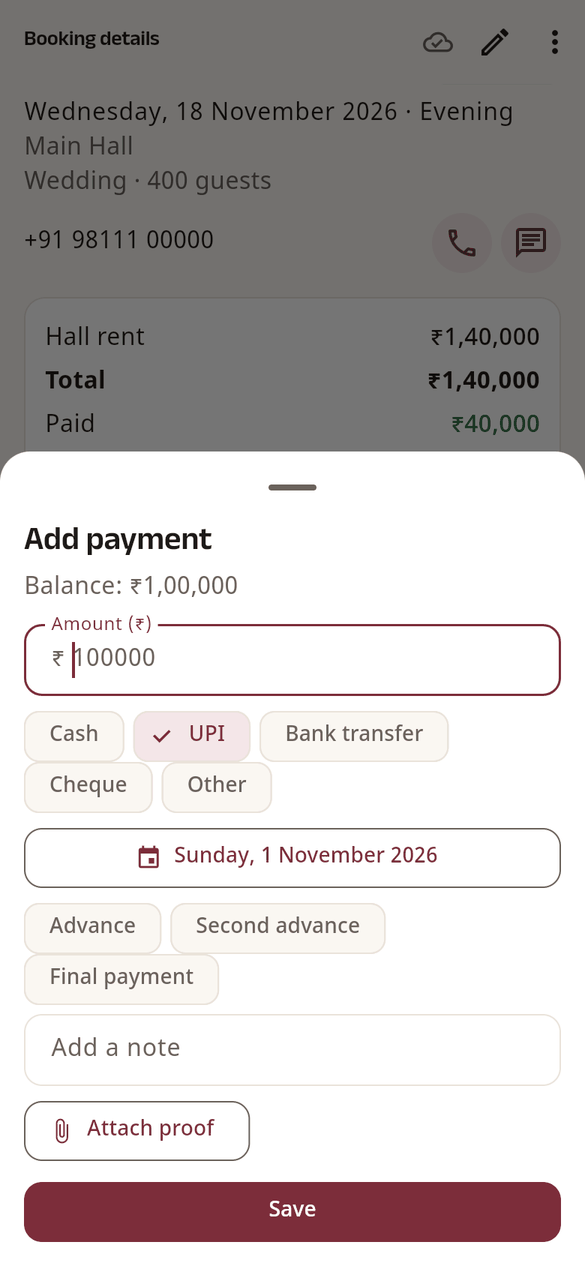
- Open the booking and, under Payments, tap Add payment. (Or Dues › Collect next to the booking.)
- Type the Amount (₹). The balance is shown above it.
- Choose the mode: Cash, UPI, Bank transfer, Cheque or Other, and the date (today unless you change it).
- Optionally tap Advance, Second advance or Final payment, or Add a note.
- Attach proof if you have it: Take photo, Choose photo or Choose document (a UPI screenshot, cheque photo, bank slip or cash receipt).
- Tap Save. The balance and Dues update at once.
Files can be photos, PDF, Word or Excel, up to 5 MB each. Photos are made smaller automatically. If the owner has made proof compulsory above an amount, Save waits until a file is attached.
Receipt for the customer
There is no separate receipt: the booking's bill is the receipt. In the booking's ⋯ menu, use Share or Print / PDF. The bill lists every payment with its date and mode, and the balance.
A payment was entered wrong
Payments cannot be edited. Tap the bin next to it, Remove payment, then add it again correctly. The balance goes back up when you remove one.
Refunds
- When you Cancel booking with money collected, choose Refund all of it or Refund part of it.
- Later, or when more was paid than the total, use Record refund on the booking: amount, mode, date and, if needed, proof.
The bill then shows what was Kept and Refunded.